This article guides you through the installation of a module on WildFly / JBoss EAP using the Command Line Interface.
Modules are the heart of WildFly application server. If you want to install a library as a module, in order to share with your applications, you have to create a directory structure for it and add the module.xml file descriptor and the JAR libraries. See this tutorial for more information about installing a module on the application server.
Using the CLI to speed up module installation
Creating the module structure manually might be a little lengthy approach. Also it can be the case you don’t have access to the file system of the application server. Therefore, we recommend using the CLI to install a new module in the application server.
As you can see, once you connect with the CLI (jboss-cli.cmd / jboss-cli.sh) and type module [TAB] the auto-completion tool suggests to add or remove a module:
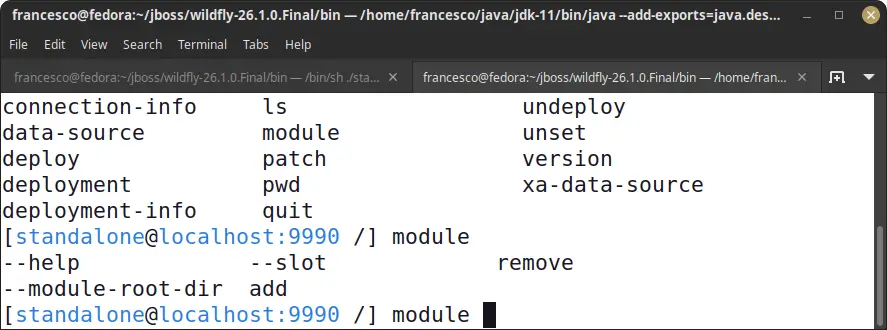
To add a new module, you need to provide three arguments: the module name, the resources (JAR files) and the dependencies used. Optionally you can add a module slot, in case your module uses several different implementations.
Here’s how to add a module “org.mysql” which you can use to install a MySQL Datasource:
module add --name=org.mysql --resources=mysql-connector-java-5.1.18-bin.jar --dependencies=javax.api,javax.transaction.api
Let’s see the outcome of the module add command:
tree org
org
└── mysql
    └── main
        ├── module.xml
        └── mysql-connector-java-8.0.29.jar
As you can see, the module add command created under JBOSS_HOME/modules folder the structure for your module according to the module name (org.mysql). The module.xml is available in the main folder along with the Jar file (mysql-connector-java-8.0.29.jar).
Here is the content of the module.xml file:
<module xmlns="urn:jboss:module:1.1" name="org.mysql">

    <resources>
        <resource-root path="mysql-connector-java-8.0.29.jar"/>
    </resources>

    <dependencies>
        <module name="javax.api"/>
        <module name="javax.transaction.api "/>
    </dependencies>
</module>
As you can see from the above script, the module add cannot be rolled back as part of a batch script. This is because the module add command adds resources on the file system and not in the application server configuration.
Two things to know about module add
When you add a module using the Command Line Interface you need to be aware of two key points:
- You cannot roll back changes of “module add” as part of a batch script. In order to roll back the module creation, you have to use the corresponding module remove command. For example: module remove –name=org.mysql
- In domain mode, you cannot add modules when the connection from the CLI to the Host Controller is active. You will get the following error message:
The command is not available in the current context (e.g. required subsystems or connection to the controller might be unavailable).
To solve the issue, start the CLI in disconnected mode and add the module before connecting. For example:
$ ./jboss-cli.sh
You are disconnected at the moment. Type 'connect' to connect to the server or 'help' for the list of supported commands.

[disconnected /] module add --name=org.mysql --resources=/home/jboss/mysql-connector-java-8.0.29/mysql-connector-java-8.0.29.jar --dependencies=javax.api,javax.transaction.api
Adding a module using a one-liner command
Finally, we will show how to append the module add command to the jboss-cli.sh script. As a matter of fact, you can use the –command option to inject the CLI command. For example:
./jboss-cli.sh -c --command="module add --name=org.mysql --resources=/home/user/mysql-connector-java-5.1.18-bin.jar --dependencies=javax.api,javax.transaction.api"Found the article helpful? if so please follow us on Socials


