The HAL Browser is a web application that you can include in your REST project to allow simple management of your resources.
Installing the HAL browser is really simply, all you have to do is adding the dependency to your pom.xml:
<dependency> <groupId>org.springframework.data</groupId> <artifactId>spring-data-rest-hal-browser</artifactId> </dependency> We will be using as an example the JPA/REST application defined in this tutorial: Using SpringBoot with JPA tutorial
Having added the dependency is enough to autoconfigure the HAL Browser to be served up. Run the Spring Boot application:
$ ./mvnw spring-boot:run Next, visit the uri http://localhost:8080 , we got a first screen shot:
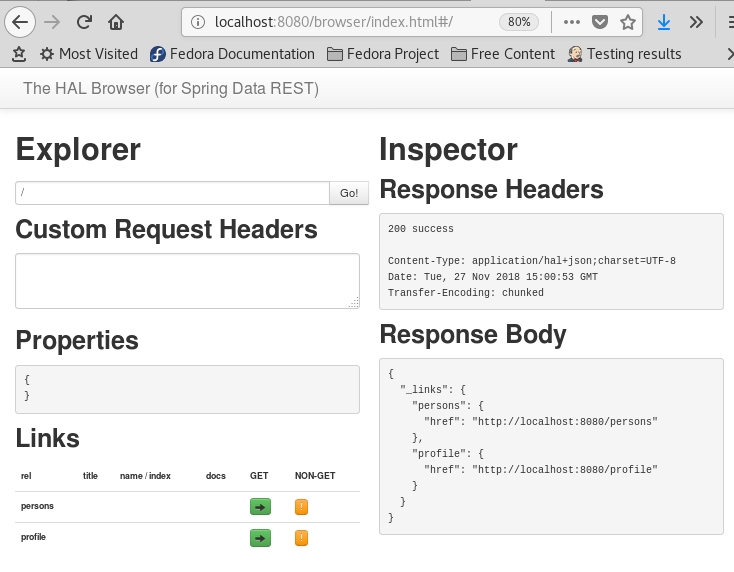
As you you can see, the screen is split in two parts: the right side is a response from Spring Data Rest app, the left side is a parsing response of HAL Browser.
There are having 2 group buttons: GET and NON-GET.
– GET is used to navigate to a resource of the collection.
– NON-GET button is used to do a {POST, PUT, DELETE} request on the collection:
You can click on the GET icon or simply Add the ‘/all’ GET request to the Explorer and click the Go button. You should see all the entries.
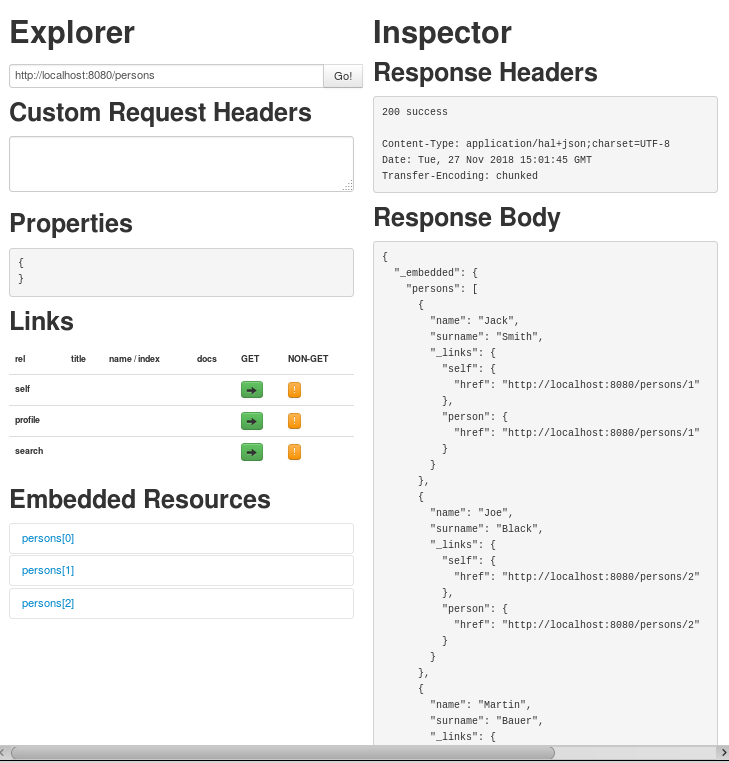
On the other hand, if you click the yellow icon belonging to the entry caption (in its NON-GET column). This will bring up the window you’ll use to input the data:
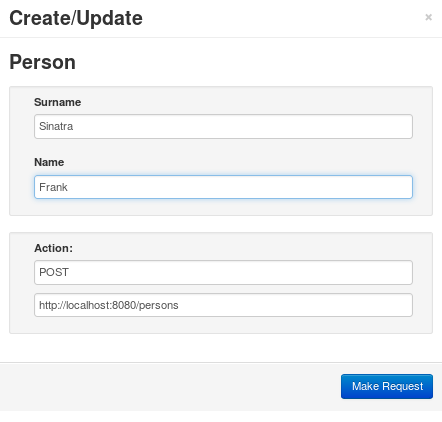
Checking Embedded Resources
Embedded Resources show the details of the individual book records on our /persons endpoint. Each resource also contains its own Properties and Links section:
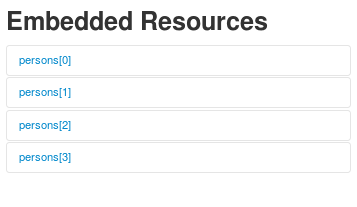
As you can see, you can easily test your REST resources using the HAL Browser application.
Found the article helpful? if so please follow us on Socials


