This updated article will teach you how to find the version of WildFly or JBoss EAP that you are running. As we will see in a minute, there are multiple ways to find it. However, not all might be available in your scenario. Therefore, it’s good to know all the options you have.
Let’s assume that you are at a Job Interview and you get the question “How to check the JBoss version you are running ?“. Let’s see how to address this question.
Basic solution: check the Server Logs
Firstly, if you have access to the server logs, this information is printed in the server.log file at startup. For example, if you are running WildFly 36:
19:37:26,574 INFO [org.jboss.as] (Controller Boot Thread) WFLYSRV0025: WildFly 36.0.1.Final (WildFly Core 28.0.1.Final) started in 3273ms - Started 339 of 554 services (330 services are lazy, passive or on-demand) - Server configuration file in use: standalone.xml - Minimum feature stability level: community
Besides, if you have access to the modules folder, you will see that the core modules of WIldFly modules contain the Server version in the JAR name:
find . -name *wildfly*.jar
. . . .
./org/jboss/as/messaging/main/wildfly-messaging-36.0.1.Final.jar
Use the Management Tools
Most of the times, however, you would like to use Management tools to check JBoss / WildFly version.
This information is available both from the Web Console and the Command Line Interface. On the Web console, you can find it out at the following link: http://localhost:9990/console/index.html#standalone-server . For example, here’s a snapshot of WildFly 36:
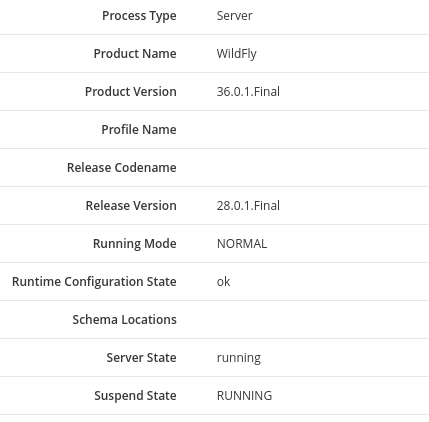
The Server version can be see from the Management Major Version element.
When using the Command Line Interface (CLI), you can retrieve the exact version through the product-info command.
Firstly, connect to the CLI:
./jboss-cli.sh -c
Next, issue the :product-info command:
product-info
{
    "outcome" => "success",
    "result" => [{"summary" => {
        "host-name" => "computer",
        "instance-identifier" => "323adaf2-715e-4e45-8c5f-36655a68ffdf",
        "product-name" => "WildFly Full",
        "product-version" => "31.0.0.Final",
        "product-community-identifier" => "Product",
        "product-home" => "/opt/wildfly-31.0.0.Final",
        "standalone-or-domain-identifier" => "STANDALONE_SERVER",
        "host-operating-system" => "Fedora Linux 39 (Workstation Edition)",
        "host-cpu" => {
            "host-cpu-arch" => "amd64",
            "host-core-count" => 8
        },
        "jvm" => {
            "name" => "OpenJDK 64-Bit Server VM",
            "java-version" => "17",
            "jvm-version" => "17.0.9",
            "jvm-vendor" => "Red Hat, Inc.",
            "java-home" => "/usr/lib/jvm/java-17-openjdk-17.0.9.0.9-3.fc39.x86_64"
        }
    }}],
    "response-headers" => {"process-state" => "reload-required"}
}
The application server version in the above example is available in product-version .
Please note that you can also extract the single attribute – the product version – which is useful if you want to collect the version as part of a script, for example:
read-attribute(name=product-version)
{
    "outcome" => "success",
    "result" => "31.0.0.Final",
    "response-headers" => {"process-state" => "reload-required"}
}
Command Line Options
Finally, it’s worth mentioning that the standalone script includes also the –version flag which allows (at startup) to check the server version:
$ ./standalone.sh --version
=========================================================================

  JBoss Bootstrap Environment
. . . . .

19:41:07,461 INFO  [org.jboss.modules] (main) JBoss Modules version 2.1.6.Final
WildFly 36.0.1.Final (WildFly Core 28.0.1.Final)
We have covered some basic options to verify your WildFly version. If you want to learn how to execute the above commands in no-interactive ways, check this tutorial: How to run a WildFly CLI commands from the shell
Older JBoss versions
If you look at the server logs, every application server release boots with information about the server version:
10:23:56,860 INFO [Server] Release ID: JBoss [Trinity] 4.2.2.GA (build: SVNTag=JBoss_4_2_2_GA date=200710221139)
However, interview questions are seldom based on real case examples but more often used to test if you are a smart guy or not. So, in releases 4.X to 6.X you can find it using the jmx-console digging into the jboss.system domain. The following MBean request to find out the JBoss version you are running:
Which will return a set of Server properties including the release of the application server:

Conclusion
Identifying the current version of WildFly running on your system is a simple yet essential task for effective server management, troubleshooting, and ensuring compatibility with applications and updates. Whether you prefer using the command-line interface (CLI), scanning startup logs, or navigating through the web-based management console, WildFly provides multiple reliable methods to retrieve this information. By leveraging these approaches, administrators can quickly verify the server version and confidently move forward with configuration, upgrades, or support diagnostics.