WildFly 32 introduces as an experimental feature, the possibility to print a Banner when the application server is starting up. In this article, we will learn how to customize the banner and how to use a simple Ansible playbook to install a custom banner on every server in your inventory.
Running WildFly in experimental mode
You can now choose at start up the stability level of WildFly application server. In the following article we discuss the difference between them: Configuring WildFly stability levels
In order to display a start up banner, we need to boot WildFly with the “experimental” stability level. This level represents bleeding-edge development. There’s a real likelihood of future incompatible changes, including the possibility of being dropped altogether.
To start WildFly in experimental stability mode, you can execute the following command:
./standalone.sh --stability=experimental
Out of the box, the following text message will display on the Console:
 _       ___ __    __________
| |     / (_) /___/ / ____/ /_  __
| | /| / / / / __  / /_  / / / / /
| |/ |/ / / / /_/ / __/ / / /_/ /
|__/|__/_/_/\__,_/_/   /_/\__, /
                         /____/
You can customize the banner by overwriting the text file in JBOSS_HOME/modules/system/layers/base/org/jboss/as/product/main/banner.txt
For example, if you use the Linux figlet tool, you can generate an Ascii Art text from a String:
figlet "Hello WildFly" > modules/system/layers/base/org/jboss/as/product/main/banner.txt
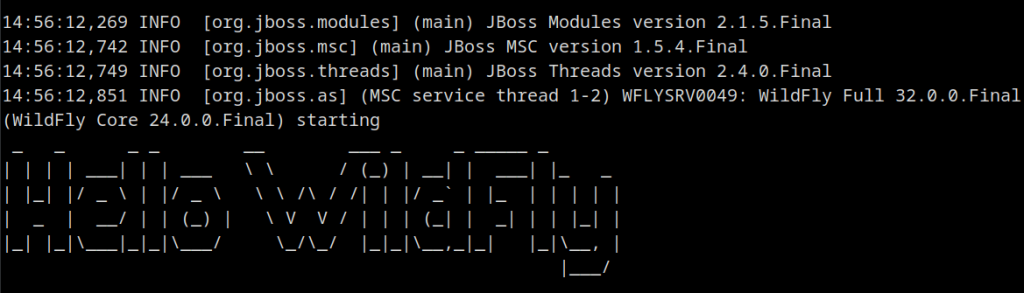
As you can see, when you boot WildFly the new Banner message is printed in the server logs:
Using an Ansible Playbook to customize WildFly Boot messages
A boot Banner serves primarily to provide some basic information or instructions. For example, you can display important information such as version numbers, release notes, contact details for support, or any other relevant information that users might need to know.
In the simplest use case, you can just output the Hostname so that you can easily recognize where a Server log belongs to.
With the Ansible framework it is very simple to create a custom WildFly boot banner with this information. If you are new to Ansible playbooks, you can check this introduction article: Ansible Playbook Example for beginners
Here is a sample playbook which creates a custom banner on every Machine in your inventory with your WildFly Hostname:
---
- name: Execute figlet command and saves output to a file
  hosts: servers
  vars:
    message: "WildFly on"
    banner: "/home/jboss/wildfly-32.0.0.Final/modules/system/layers/base/org/jboss/as/product/main/banner.txt"
  tasks:
    - name: Ensure figlet is installed
      become: yes
      package:
        name: figlet
        state: present

    - name: Execute figlet command
      shell:
        cmd: 'figlet "{{ message }} {{ inventory_hostname }}" > {{ banner }}'
Then, within your inventory file, you can include all WildFly hosts which belong to the “servers” group. For example:
[servers]
host1
host2
host3
For testing purposes, you can also begin with a localhost test:
---
- name: Execute figlet command and saves output to a file
  hosts: localhost
Assuming that your playbook name is “banner.yml” you can run it as follows:
ansible-playbook banner.yml
When you execute the playbook on localhost, you should see the following output in the console:
PLAY [Execute figlet command and copy output file] ***********************************************************************************************************

TASK [Gathering Facts] ***************************************************************************************************************************************
ok: [localhost]

TASK [Ensure figlet is installed] ****************************************************************************************************************************
ok: [localhost]

TASK [Execute figlet command] ********************************************************************************************************************************
changed: [localhost]

PLAY RECAP ***************************************************************************************************************************************************
localhost                  : ok=3    changed=1    unreachable=0    failed=0    skipped=0    rescued=0    ignored=0
Then, try starting a WildFly server in experimental mode:
15:31:43,301 INFO  [org.jboss.as] (MSC service thread 1-2) WFLYSRV0049: WildFly Full 32.0.0.Final (WildFly Core 24.0.0.Final) starting
__        ___ _     _ _____ _
\ \      / (_) | __| |  ___| |_   _    ___  _ __
 \ \ /\ / /| | |/ _` | |_  | | | | |  / _ \| '_ \
  \ V  V / | | | (_| |  _| | | |_| | | (_) | | | |
   \_/\_/  |_|_|\__,_|_|   |_|\__, |  \___/|_| |_|
                              |___/
 _                 _ _               _
| | ___   ___ __ _| | |__   ___  ___| |_
| |/ _ \ / __/ _` | | '_ \ / _ \/ __| __|
| | (_) | (_| (_| | | | | | (_) \__ \ |_
|_|\___/ \___\__,_|_|_| |_|\___/|___/\__|
Conclusion
Providing a custom WildFly boot Banner can help to provide some useful information or security best practices to Application Server Administrators. In this article we have seen how to customize the Banner message with WildFly 32 and how to create custom Banner messages on all your WildFly installations